Using the iPad as a laptop replacement: How to find the perfect iPad keyboard
An iPad is a great device for watching videos or browsing the internet. But did you know that with the right accessories, it can also become a real work tool? If you do a lot of writing, an iPad keyboard is the perfect addition to your tablet. It instantly transforms your screen into a small office that fits in your pocket. Many people now even use their tablet with a keyboard as a complete replacement for a heavy laptop when traveling. In this guide, we’ll take a look at what’s really important when buying and using an iPad keyboard on a daily basis.
The story of the iPad and its writing tools
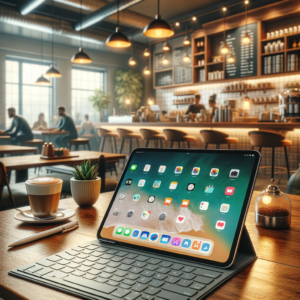
When Steve Jobs introduced the first iPad, no one was thinking about a real, physical keyboard. You simply typed on the glass screen, which was perfectly adequate for short emails. But users wanted more and demanded real keys with a tactile feedback. Apple reacted quickly and over the years developed increasingly better accessories for its tablets. Today, the iPad keyboard is a sophisticated tool with its own power supply and even an integrated trackpad for a mouse.
| criterion | Details about the iPad keyboard |
| Inventor / Brand | Apple Inc. (and third-party vendors such as Logitech) |
| First appearance | Together with the first iPad (2010) as a dock |
| Key models | Magic Keyboard, Smart Keyboard Folio, Keys-to-Go |
| Connection types | Smart Connector (magnetic) or Bluetooth |
| Layouts | German keyboard (QWERTZ), English (QWERTY) and more |
| Special functions | Backlight, USB-C pass-through charging |
Why a tablet with a keyboard makes your life easier
Typing on a glass surface can be tiring, especially when writing long texts for school. An iPad keyboard gives you a realistic typing feel, just like on a full-size computer. Your fingers won’t tire as quickly, and you’ll automatically make far fewer typing errors. Plus, the entire screen remains free for your apps because the virtual keyboard no longer needs to be displayed. This allows you to see much more of your work or homework.
The original: What does a genuine Apple keyboard offer?
Those seeking the ultimate experience usually opt for an original Apple keyboard directly from the manufacturer. Apple creates accessories that work seamlessly with the iPad. You don’t need to connect any cables and often don’t even need to activate Bluetooth in the settings. The keyboards attach securely with magnets and utilize the Smart Connector on the back of the iPad. This means the keyboard draws its power directly from the tablet and never needs to be charged separately.
The Magic Keyboard: The masterpiece for professionals
The Magic Keyboard is the ultimate typing tool for your Apple tablet. This iPad keyboard makes your tablet appear to float above the keys, which looks incredibly cool. It has built-in backlighting for the keys, so you can type easily even in the dark. But the best feature is the integrated trackpad, which lets you control a small dot on the screen. This makes your iPad feel like a real, modern laptop every second.
The affordable alternative: third-party keyboards
It doesn’t always have to be the most expensive model directly from Apple to be happy. Many well-known companies like Logitech or Brydge also make fantastic keyboards for your tablet. A tablet with a keyboard from a third-party manufacturer often saves money and sometimes even offers better corner protection. These models usually use a Bluetooth connection and have their own batteries that need to be recharged every few months. For students, this is often the most economical solution.
First steps: How to change your keyboard
Sometimes you tap a „Z“ and a „Y“ suddenly appears on the screen. Don’t panic, your iPad keyboard isn’t broken, it’s just incorrectly registered with the system. You can change your keyboard by going to your iPad’s settings. Tap „General“ and then „Keyboard.“ There you can select the correct language so that each keystroke produces the exact letter you see on the key.
International writing: Setting up a Russian keyboard
In our modern world, many people write in multiple languages, perhaps even using completely different writing systems. You can easily activate a Russian keyboard on your iPad to use Cyrillic letters. Simply go to the language settings and add the Russian layout. Once you have a physical iPad keyboard connected, you can switch between languages instantly using a special key combination (usually the globe icon).
Important special characters: Where is the Euro symbol on the keyboard?
Anyone writing a text or a wish list naturally needs to be able to enter prices in euros. Many beginners desperately search for the euro symbol on their keyboard at first glance. On a standard keyboard, you simply press the „Alt“ key (sometimes also called „Option“) together with the letter „E“. The beautiful € symbol will then appear on your screen. Remember this combination well, as you’ll need it constantly in everyday life.
The correct layout: The classic German keyboard
When buying a keyboard in Germany, it should always be a German keyboard . You can recognize it by the letters „QWERTZ“ in the top row. This layout also has the important umlauts Ä, Ö, and Ü as separate keys on the right. Foreign iPad keyboards often lack these keys, which makes writing German texts very difficult. Therefore, always pay close attention to the seller’s description when buying online.
Practical tips for caring for your writing supplies
To ensure your new iPad keyboard lasts for many years, you should take good care of it. Crumbs from cookies or dust can get trapped under the small keys and cause them to stick. Occasionally, carefully turn the keyboard upside down and tap it lightly. A slightly damp microfiber cloth will help remove fingerprints or coffee stains. However, never use harsh cleaning agents, as these could permanently damage the delicate surface or the internal electronics.
My personal conclusion: Is it worth buying for you?
I’ve been using my iPad with a compatible iPad keyboard for two years now and wouldn’t want to be without it. It makes the tablet so much more versatile and often saves me when I need to quickly reply to an email. If you only use your iPad for games or videos, you probably don’t need an extra keyboard. But if you type, the combination of a tablet and keyboard is a real boon to your productivity.
Frequently Asked Questions (FAQ)
Question 1: Can I connect any normal Bluetooth keyboard to the iPad?
Yes, that almost always works. The iPad is compatible with the vast majority of Bluetooth devices, regardless of the brand.
Question 2: How do I charge my original Apple keyboard?
The Smart Keyboard and the Magic Keyboard do not have their own battery. They receive their power magnetically from the iPad’s battery.
Question 3: What do I do if the keys suddenly type the wrong letters?
You need to change your keyboard layout in the settings . Simply select the correct country and layout there so that everything works correctly again.
Question 4: How do I type an @ symbol on the iPad keyboard?
Simply press the „Alt“ (Option) key together with the „L“ key. This creates the handy @ symbol for email addresses.
Question 5: Is there also a Russian keyboard for the iPad with real stickers?
Yes, you can buy special stickers online. You stick them on your German keyboard so you can see both alphabets at the same time.
Question 6: Is an iPad keyboard difficult to transport?
No, most models also function as a protective case. They simply fold over the display, adding only minimal thickness to the package.
Have you used a keyboard with your tablet before? Which model do you like best? Feel free to share your opinion or questions in the comments below, and I’ll reply personally!